Connect your calendar in a few minutes.
Once your calendar is connected, Nexa only offers times you're actually free, and every booking shows up on your phone. Pick the calendar you already use.
Google Calendar
You use Gmail or the Google Calendar app. One sign-in, and it works both ways.
About 1 minuteApple Calendar
You use the Calendar app on iPhone, iPad or Mac (iCloud).
About 2 minutesOutlook or other
Outlook, or any calendar app that can add a calendar from a link.
About 1 minute| Apple | Outlook / other | ||
|---|---|---|---|
| Bookings appear in your calendar | Instantly | Within minutes | Within minutes to hours |
| Nexa avoids times you're busy | Yes | Yes, with step 2 | No |
| What you need | A Google account | iPhone, iPad or Mac | Your calendar app |
Google Calendar
The easiest option. You sign in once, Nexa books jobs straight into your Google Calendar, and it won't book over anything already there.
Open your calendars in the dashboard
Sign in, then go to the Business page and scroll to Calendars.
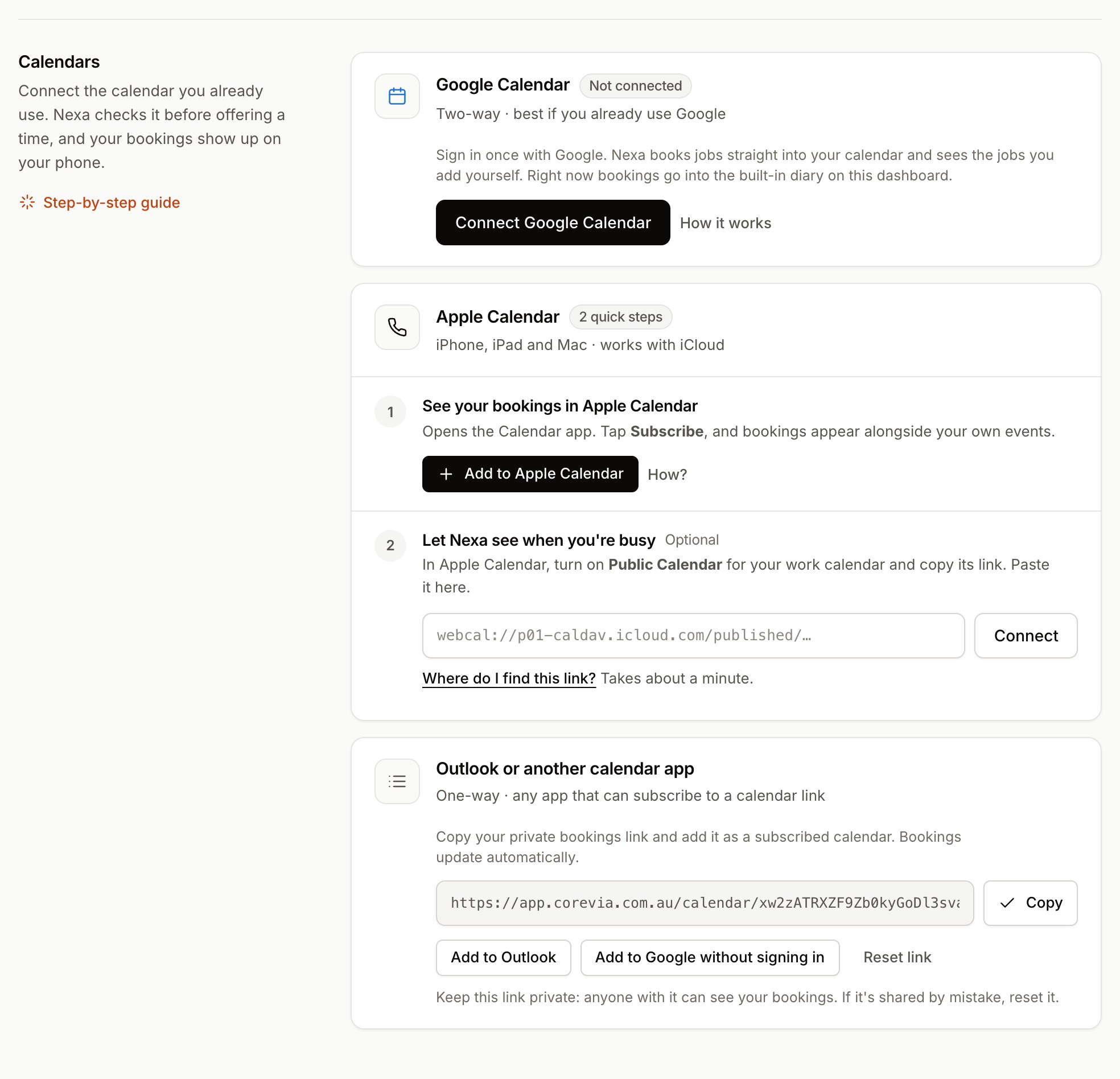
Click Connect Google Calendar
Google opens in the same window.
Choose your Google account and click Allow
Pick the account whose calendar you use for work. Google asks for permission to see and edit your calendar, which Nexa needs so it can check free times and add bookings.
Simplified illustration. Google's screen may look slightly different.
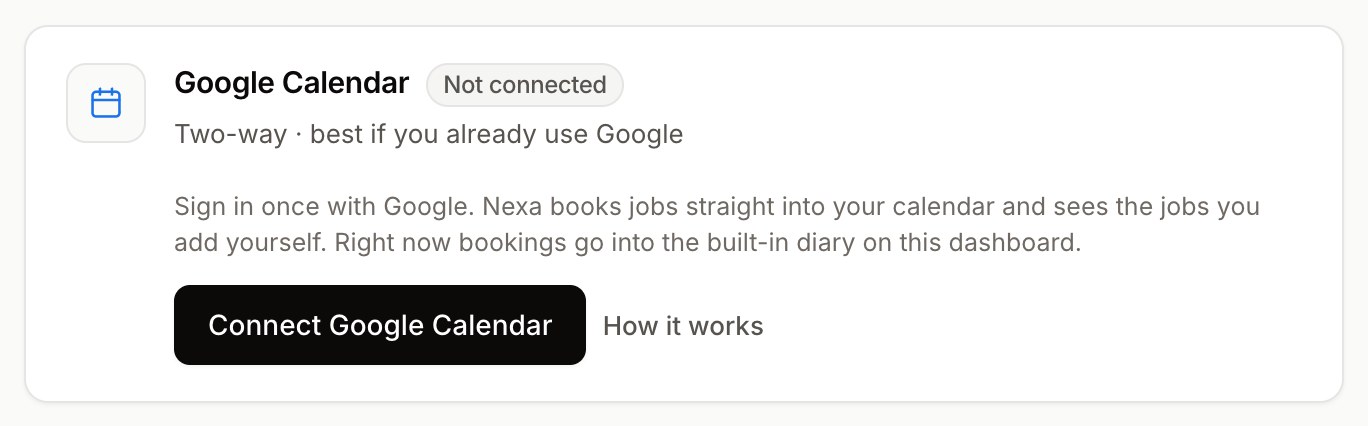
You're done
You'll land back on your dashboard and the card says Connected. Try a test call to see Nexa offer only your free times.
Apple Calendar
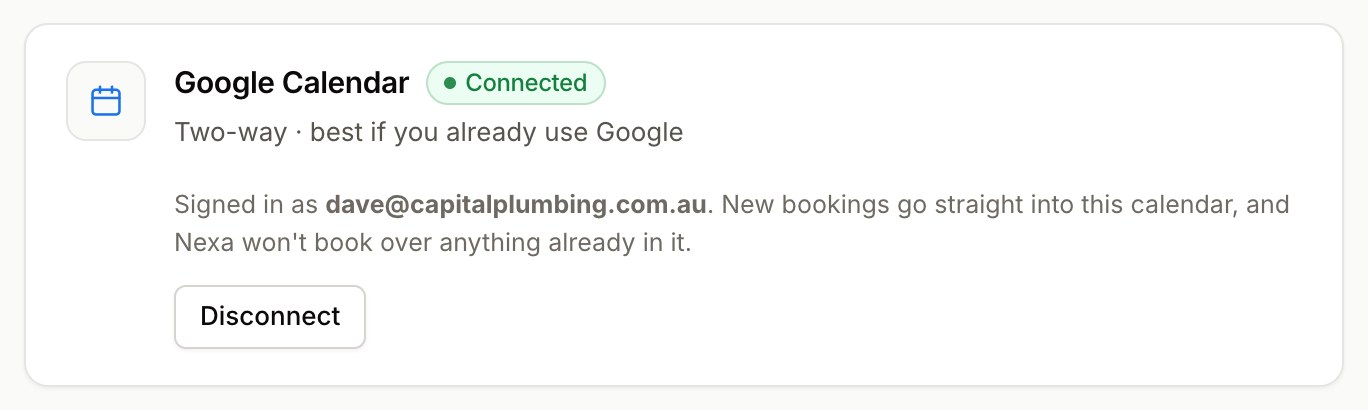
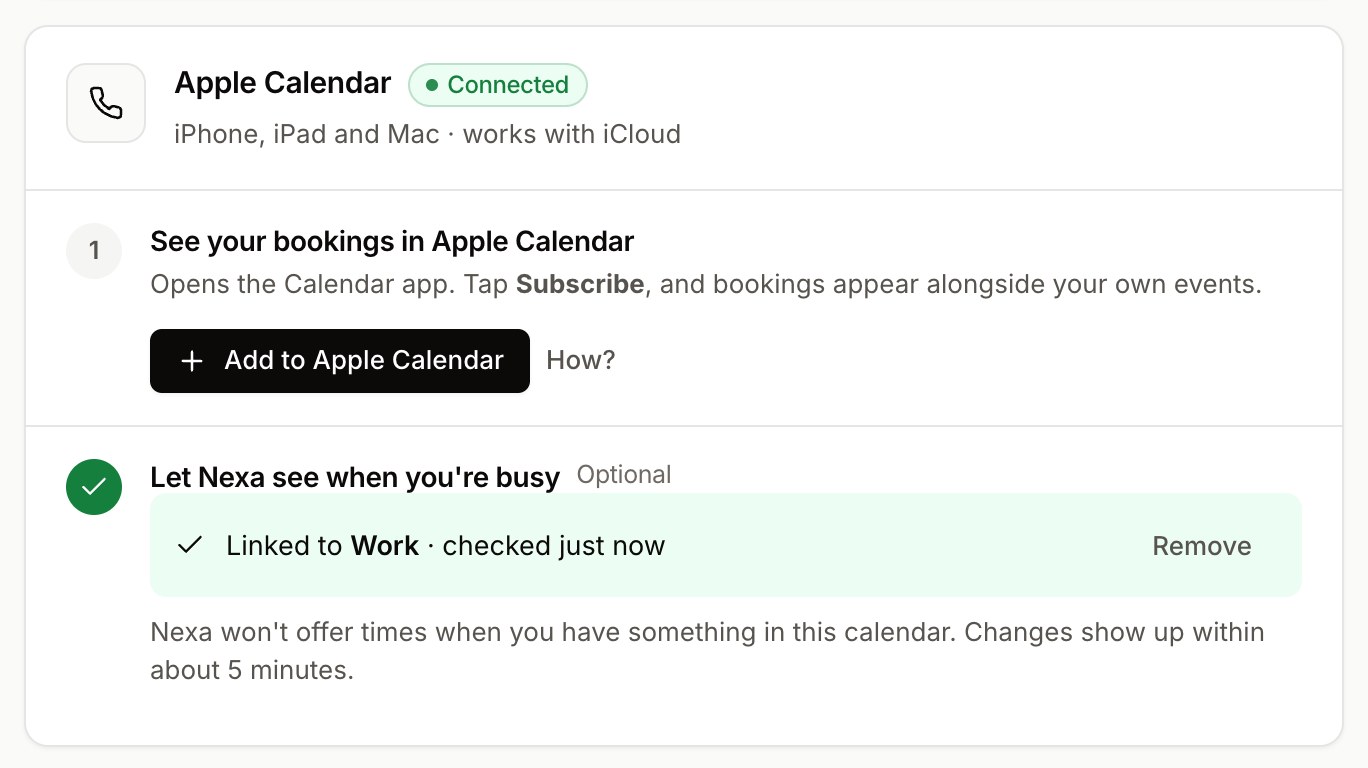
Apple doesn't let other apps sign in to iCloud calendars, so this takes two short steps: one so your bookings appear in Apple Calendar, and one so Nexa can see when you're busy.
Step 1 · See your bookings in Apple Calendar
Do this on the iPhone or Mac where you want to see bookings.
On your iPhone, open the dashboard and tap Add to Apple Calendar
Tap Subscribe
The Calendar app opens and asks if you want to subscribe. Tap Subscribe, then Done. Your bookings now appear as their own calendar, called "your business · Nexa bookings".
Simplified illustration of iPhone.
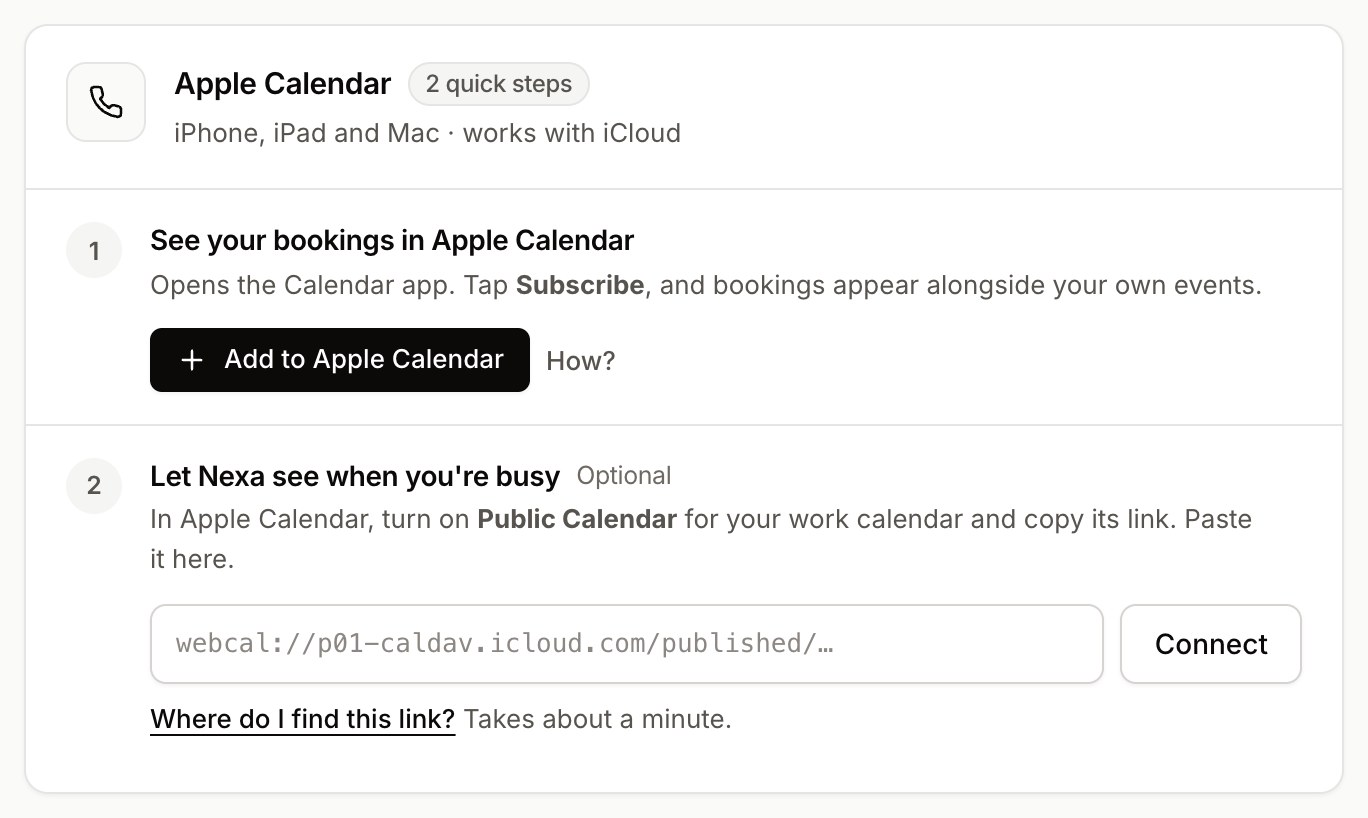
Step 2 · Let Nexa see when you're busy (recommended)
You share one calendar, for example "Work", as a read-only link. Nexa never offers times when you have something in it.
In the Calendar app, tap Calendars, then the ⓘ next to your work calendar
Simplified illustration of iPhone.
Turn on Public Calendar, then tap Share Link and Copy
Scroll down to Public Calendar and switch it on. Tap Share Link…, then Copy.
Simplified illustration of iPhone.
Simplified illustration of iPhone.
Paste the link into Corevia and tap Connect
Back in your dashboard, paste it into the Apple Calendar card under step 2. Nexa checks the link straight away and tells you how many upcoming events it found.
Doing step 2 on a Mac instead
Control-click your work calendar in the sidebar and choose Sharing Settings
On some versions of macOS it's called Share Calendar…
Simplified illustration of macOS.
Tick Public Calendar and copy the link
Simplified illustration of macOS.
Outlook and other apps
Any calendar app that can "subscribe" or "add from a link" can show your bookings. This is one-way: bookings appear in your app, but Nexa can't see your other events.
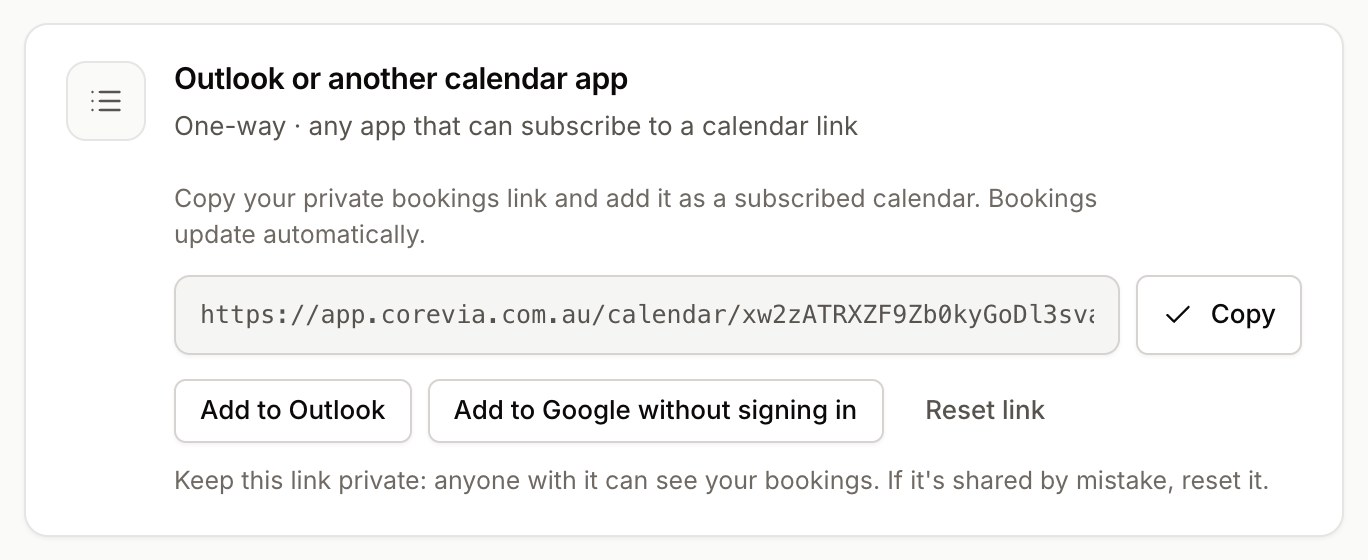
Copy your private bookings link
Use the Copy button on the "Outlook or another calendar app" card.
Add it to your calendar app
Outlook on the web: click Add to Outlook on the card. Or in Outlook go to Add calendar › Subscribe from web, paste the link and click Import.
Google Calendar without signing in: on a computer, next to Other calendars click + › From URL, paste the link and click Add calendar.
Simplified illustration. Your app may look different.
Frequently asked questions
Which option should I choose?
Use whichever calendar you already look at every day. If you use Google Calendar, connect Google: it's one sign-in and works both ways. If you use the Calendar app on your iPhone or Mac, follow the Apple steps.
How quickly do new bookings show up on my phone?
Google (connected): instantly.
Apple Calendar: Apple decides how often it checks subscribed calendars. It's usually within minutes; on a Mac you can set it to every 5 minutes.
Google without signing in, or Outlook: these can take several hours to refresh. If you need bookings instantly, connect Google directly instead.
Will Nexa book over my personal appointments?
Nexa only knows about calendars you connect. With Google connected, it sees that Google calendar. With Apple, it sees the one calendar you shared in step 2. Anything in those calendars is treated as busy.
Do all-day events block bookings?
Yes. An all-day event (like "Holiday") blocks that whole day, unless the event is marked as Free in your calendar. Events marked Free never block bookings.
It says "That calendar isn't shared publicly".
Make sure Public Calendar is switched on for that calendar, then copy the link again. If you turn Public Calendar off and on, Apple creates a new link, so paste the new one.
The "Add to Apple Calendar" button doesn't do anything.
That button only works on an iPhone, iPad or Mac. On Windows or Android, copy the link and add it on your iPhone instead. See the tip under Apple step 1.
Is my calendar private?
Your bookings link is long, random and unique to your business. Anyone who has it can see your bookings, so don't post it anywhere. If it's shared by mistake, click Reset link. The old link stops working immediately.
The Apple link you paste in is stored encrypted, and Nexa only uses it to find busy times.
Can I use Google and Apple together?
Yes. For example, connect Google so bookings go into Google Calendar, and also share your iCloud calendar so Nexa avoids your personal commitments.
Do my staff need to set this up?
No. Only the business owner connects calendars. Staff can see bookings in the dashboard, or the owner can send them the bookings link to add to their own calendar app.
How do I disconnect a calendar?
Go to Business › Calendars. For Google click Disconnect; for Apple click Remove. To stop bookings appearing in a subscribed calendar, delete the subscription in your calendar app or reset the bookings link.
Nexa offered a time I'm busy. Why?
Check the event is in a connected calendar and isn't marked Free. Changes to an Apple calendar can take up to about 5 minutes to reach Nexa. If the Apple card shows Check link, copy a fresh link from Apple Calendar.
No questions match. Try another word, or contact us below.
Still stuck?
Tell us what you see and we'll walk you through it.